What is System Data in Mac Storage? And How to Clear It
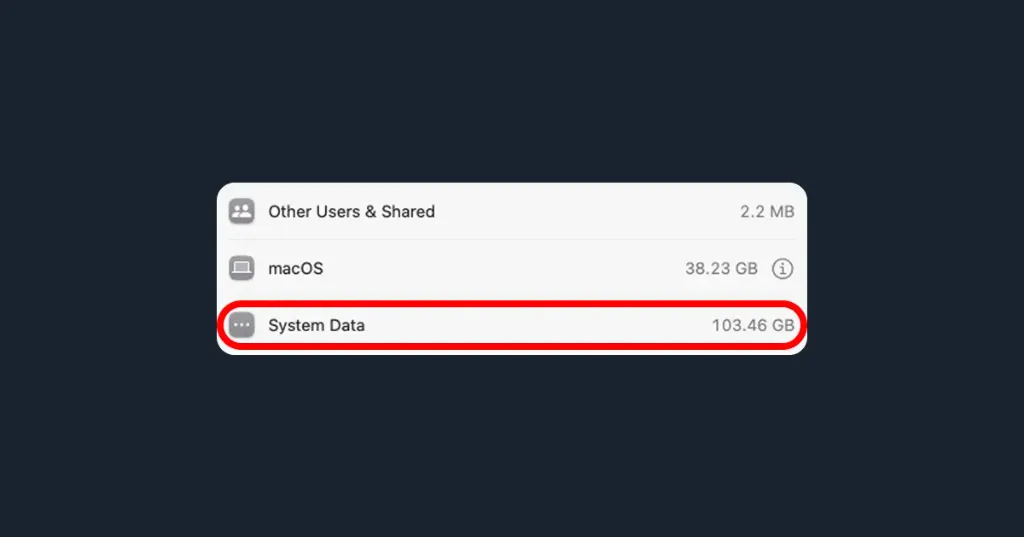
If you have ever checked your Mac's storage graph, you might have noticed a massive, gray bar labeled "System Data" consuming gigabytes of precious space. If you're wondering what this category actually is—and why Apple doesn't let you easily delete it—you're not alone.
In older versions of macOS, this category was often referred to as "Other." So if you're asking "what is other in mac storage?", it's exactly the same thing. Today, we'll break down what System Data is and how to clean mac storage effectively.
Understanding System Data Mac Storage
When macOS categorizes your files, it looks for easily identifiable formats: Photos, Applications, Messages, and Documents. Anything that doesn't fit neatly into these predefined buckets gets thrown into the System Data category.
This category typically includes:
- Application Caches: Temporary files generated by apps like Spotify, Chrome, or Xcode to load faster. Over time, these can grow to dozens of gigabytes.
- macOS System Caches: Essential operating system logs, virtual memory files, and sleep images.
- App Plugins and Extensions: Third-party add-ons and browser extensions.
- Time Machine Local Snapshots: Temporary backup files stored locally when your external backup drive isn't connected.
Why Does System Data Grow So Large?
The primary reason your system data mac storage balloons out of control is poor cache management. When you delete an application by simply dragging it to the Trash, the app's hidden cache files remain in your invisible Library folder forever.
Over months and years, these orphaned files accumulate. To truly optimize mac storage, you need to find and remove these hidden files.
How to Clean Mac Storage and Reduce System Data
Apple's built-in storage management tools don't let you directly explore or delete files inside the System Data category. To clean up mac storage, you have two choices:
1. The Manual Method (Risky)
You can open the hidden Library folder by launching Finder, clicking Go in the menu bar, holding the Option key, and clicking Library. From there, you can dig through folders like Caches, Application Support, and Logs.
Warning: Deleting the wrong system file here can cause applications to crash or break macOS entirely.
2. Use a Visual Mac Storage Cleaner (Recommended)
The safest and fastest way to reduce System Data is to use a dedicated visual mac storage cleaner like CheckMyDisk.
A visual disk analyzer scans your entire hard drive and maps it out visually. Instead of staring at a mysterious gray bar, you can instantly spot exactly which hidden cache folders are taking up space. CheckMyDisk's byte-match duplicate detection and deep scanning make it incredibly easy to isolate leftover application data and safely delete it, allowing you to easily optimize mac storage and keep your machine running flawlessly.