How to Check Storage on Mac: The Ultimate Guide
Whether your Mac is running slowly, you're trying to download a massive software update, or you keep getting the "Startup disk is almost full" notification, checking your storage is the vital first step to getting your machine back in working order.
Here are the best ways to check your storage on any Mac (MacBook Pro, iMac, Mac mini, or Mac Studio).
1. Check via System Settings
For most users on modern macOS versions, this is the most detailed built-in view available.
- Click the Apple logo () in the top-left menu bar.
- Choose System Settings from the dropdown menu.
- Click on General in the sidebar.
- Click on Storage.
macOS will calculate your disk usage and present a colorful bar chart. You can see categories like Apps, Messages, Photos, and iOS Files. Below the chart, Apple provides automated recommendations like "Empty Trash Automatically" or "Store in iCloud."
2. Check via Finder (The Quickest Method)
If you don't want to dig through menus and just need to know exactly how many gigabytes of free space you have left, the Finder app is the fastest method.
- Click the Finder icon in your Dock (the smiling blue and white face).
- Look at the very bottom of the Finder window.
- If you don't see a status bar at the bottom, go to the top menu bar, click View, and select Show Status Bar.
The bottom of the window will now permanently display how many items are in your current folder, followed by exactly how much free space is available on your Mac's hard drive (e.g., 450.2 GB available).
Understanding "System Data"
When checking your storage, the biggest point of confusion for Mac users is the mysterious System Data category.
System Data (previously called "Other" in older macOS versions) is a catch-all category for files that don't fit neatly into Apple's predefined buckets. It includes:
- Temporary files and system caches.
- App extensions and plugins.
- Virtual machine files.
- Font files and dictionaries.
The problem? Apple doesn't let you easily inspect or delete files inside the System Data category using their built-in tools.
How to Actually See What is Taking Up Space
To truly understand what is eating up your Mac's storage—especially if System Data is ballooning out of control—you need a dedicated disk analyzer.
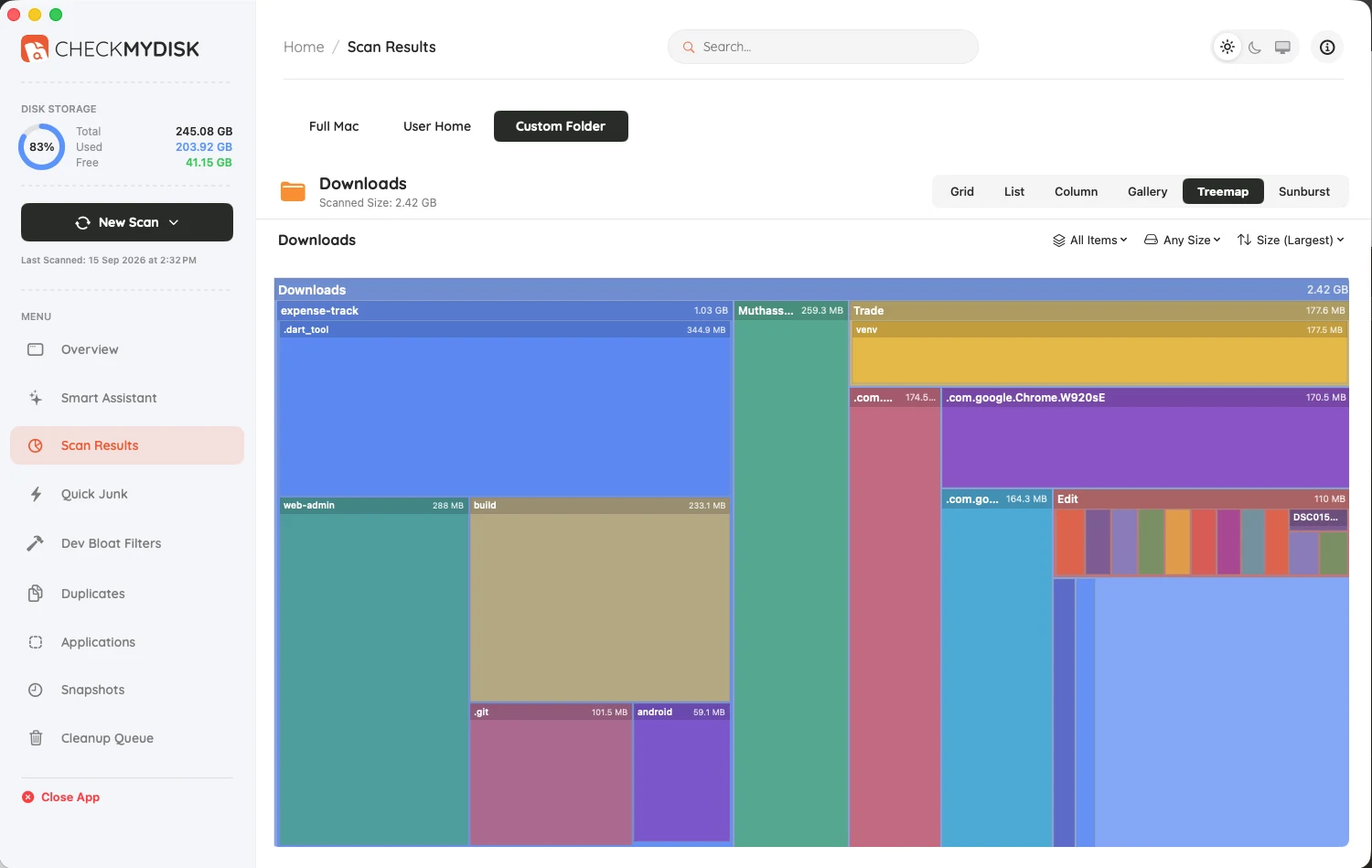
A visual disk analyzer bypasses Apple's generic categories and scans your file system block-by-block. It then renders a beautiful, interactive map of your hard drive.
Instead of wondering what "System Data" is, you can visually drill down into your hidden Library folders, instantly spot massive cache directories left behind by uninstalled apps, and safely delete them to reclaim gigabytes of space.