How to Optimize Storage on Mac for Maximum Performance
A cluttered hard drive doesn't just limit how many files you can save; it physically slows down your computer. macOS relies on having free disk space to use as "virtual memory." When your disk is full, your Mac will start freezing, lagging, and crashing.
Learning how to optimize storage on Mac is essential for keeping your machine running at peak performance. Here is a step-by-step guide to perfectly clean up mac storage.
Utilize Apple's "Optimize Mac Storage" Feature
Apple has built several brilliant cloud-syncing features directly into the operating system to help manage mac storage automatically.
If you navigate to System Settings > General > Storage, you will see a recommendation titled Optimize Storage. Clicking this will allow your Mac to automatically remove watched Apple TV movies and TV shows from your local drive.
You can also enable Store in iCloud, which will seamlessly push your Desktop and Documents folders to iCloud Drive, removing local copies of old files to free up space.
Address the "System Data" Problem
You cannot fully optimize mac storage without dealing with the elephant in the room: System Data.
If you look at your storage graph, you will likely see a massive gray bar. This is system data mac storage (if you're a long-time Mac user, you might remember wondering "what is other in mac storage?"—it's the exact same thing).
This category is filled with temporary files, Xcode caches, browser histories, and orphaned application files. Because these files are hidden deep in the ~/Library folder, learning how to clean mac storage in this category requires caution to avoid breaking applications.
Use a Visual Mac Storage Cleaner
To safely and completely optimize storage on Mac, you shouldn't hunt through hidden folders manually. You should use a dedicated, visual mac storage cleaner like CheckMyDisk.
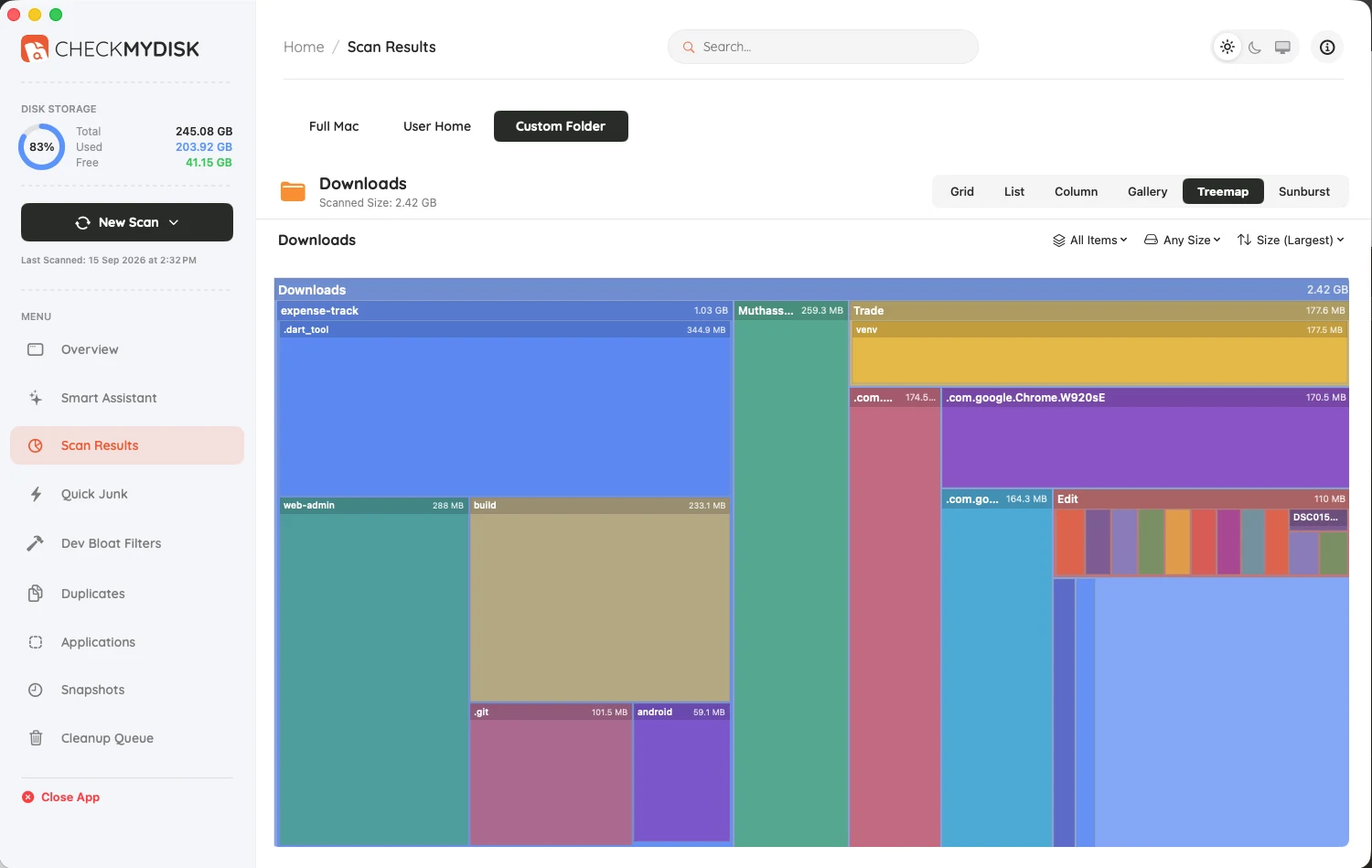
CheckMyDisk takes the guesswork out of optimization. It scans your entire drive in seconds and presents a beautiful, visual map of your file system.
- You can visually see exactly what is hiding inside the System Data category.
- You can instantly track down exact duplicate files taking up double the space.
- You can completely uninstall old applications, ensuring their hidden cache files are wiped out too.
Using a visual analyzer is the absolute best way to optimize mac storage and restore your Mac to its original, lightning-fast speed.