How to Find Storage on Mac: Locating Hidden Space Hogs
Trying to figure out exactly what is eating up your hard drive can feel like searching for a needle in a haystack. If you're wondering how to find storage on Mac, you are likely dealing with a full disk and a slow machine.
To properly clean up mac storage, you first need to understand how to locate the files that are taking it up. Here is the ultimate guide to finding those massive space hogs.
Checking the Built-In Storage Breakdown
The quickest way to get a general overview of your mac storage is to use Apple's built-in visualization.
- Open System Settings.
- Navigate to General, then click Storage.
macOS will calculate your disk usage and display a bar chart broken down into categories like Applications, Documents, and Photos.
However, you will almost certainly notice a massive gray block. This is the notorious system data mac storage (historically, many users asked "what is other in mac storage?"—it's the exact same category). This category hides system caches, app plugins, and virtual machine files, and Apple doesn't give you a button to easily explore or delete it.
Using Finder Smart Folders
To figure out how to clean mac storage manually, you can use Finder's Smart Folders to locate massive files you may have forgotten about.
- Open a new Finder window.
- Press Command + F on your keyboard to open the search interface.
- Ensure "This Mac" is selected at the top.
- Click the + button on the right side.
- In the first dropdown, select File Size. In the second, select is greater than, and type in 1 and select GB.
Finder will instantly populate a list of every single file on your Mac larger than 1 Gigabyte. This is an excellent way to manually optimize mac storage by deleting old movies or ZIP archives.
The Ultimate Way to Find Storage: Visual Disk Mapping
While Smart Folders are helpful, they don't help you find folders packed with thousands of tiny cache files, nor do they help you find duplicates.
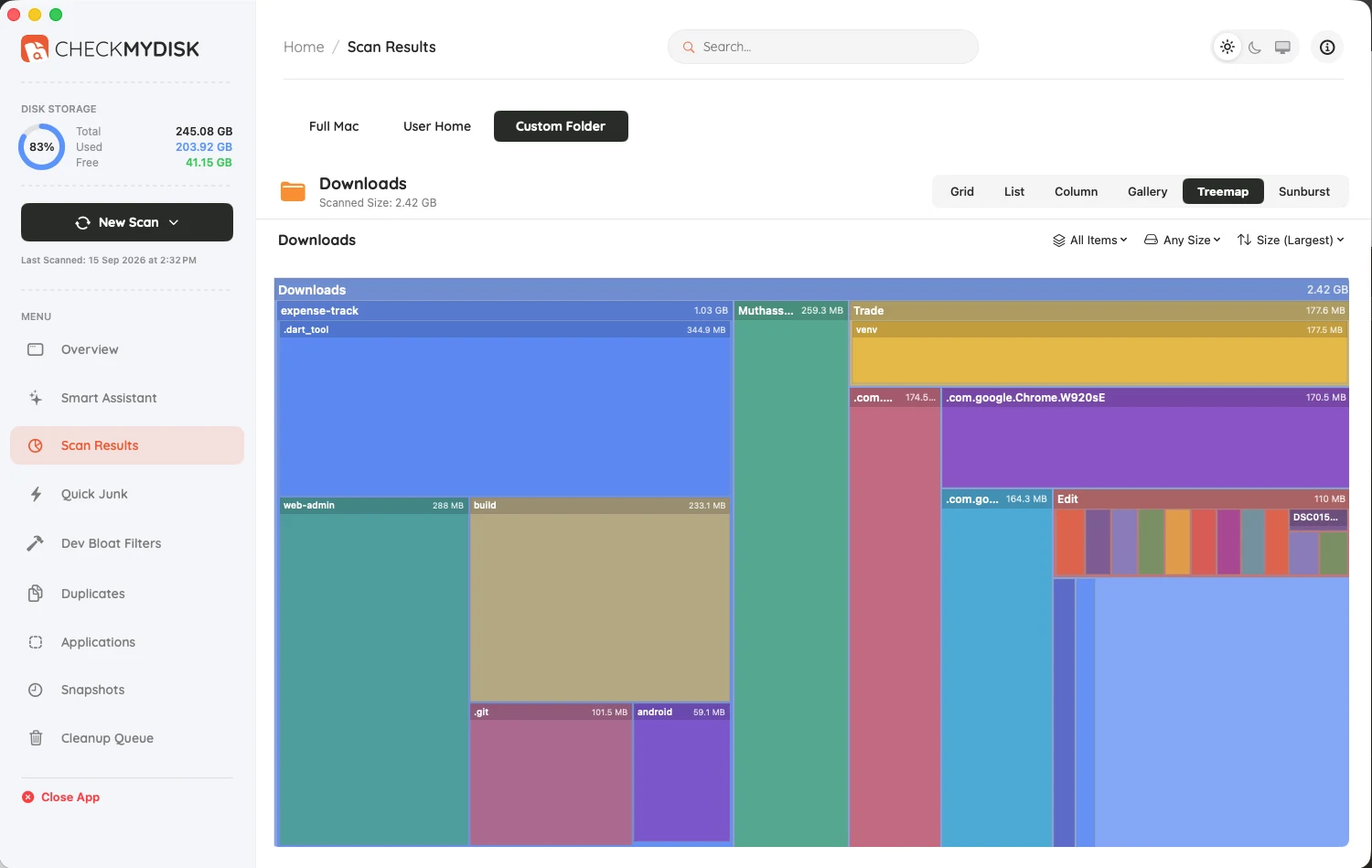
To truly master how to find storage on Mac, you need a visual mac storage cleaner. A tool like CheckMyDisk doesn't just give you a list; it gives you an interactive, visual map of your entire hard drive.
Instead of guessing where your space went, you can visually drill down into massive colored blocks that represent your largest folders. It allows you to effortlessly peer inside the hidden System Data category, isolate duplicate files, and completely clean up mac storage in minutes.