How to Clear Storage on Mac: The Ultimate Guide
Running out of disk space is one of the most frustrating experiences for a Mac user. When your startup disk is almost full, your Mac can slow down to a crawl, prevent you from downloading new apps, and block essential macOS updates.
Fortunately, learning how to clean mac storage is easier than you think. In this guide, we'll walk you through the best methods to clean up mac storage and get your machine running like new.
Step 1: Use Apple's Built-In Storage Manager
The best place to start is with the tools Apple provides.
- Click the Apple Logo () in the top left corner of your screen.
- Select System Settings (or System Preferences).
- Click on General, then select Storage.
Here, you'll see a colorful bar graph representing your mac storage. Apple will offer several automated recommendations to optimize mac storage, such as Empty Trash Automatically (which deletes items that have been in the Trash for more than 30 days) and Store in iCloud (which offloads older files to the cloud).
Step 2: Hunt Down Massive Files and Duplicates
While Apple's tool is helpful, it often isn't enough to thoroughly clean up mac storage. The biggest culprits of wasted space are forgotten downloads, old video projects, and duplicate files.
To clear storage on Mac effectively, you need to find these files. You can use Finder's search function to filter for files larger than 1GB, or sort your Downloads folder by size. However, finding duplicate files manually is nearly impossible.
Step 3: Tackle the "System Data" Problem
Often, users find that a massive chunk of their hard drive is consumed by a mysterious category called "System Data" (or, in older versions, you might wonder "what is other in mac storage?"). This system data mac storage is primarily composed of hidden application caches, orphaned app files, and system logs.
Because macOS doesn't allow you to click into this category to delete things, you need a specialized tool.
Step 4: Use a Dedicated Mac Storage Cleaner
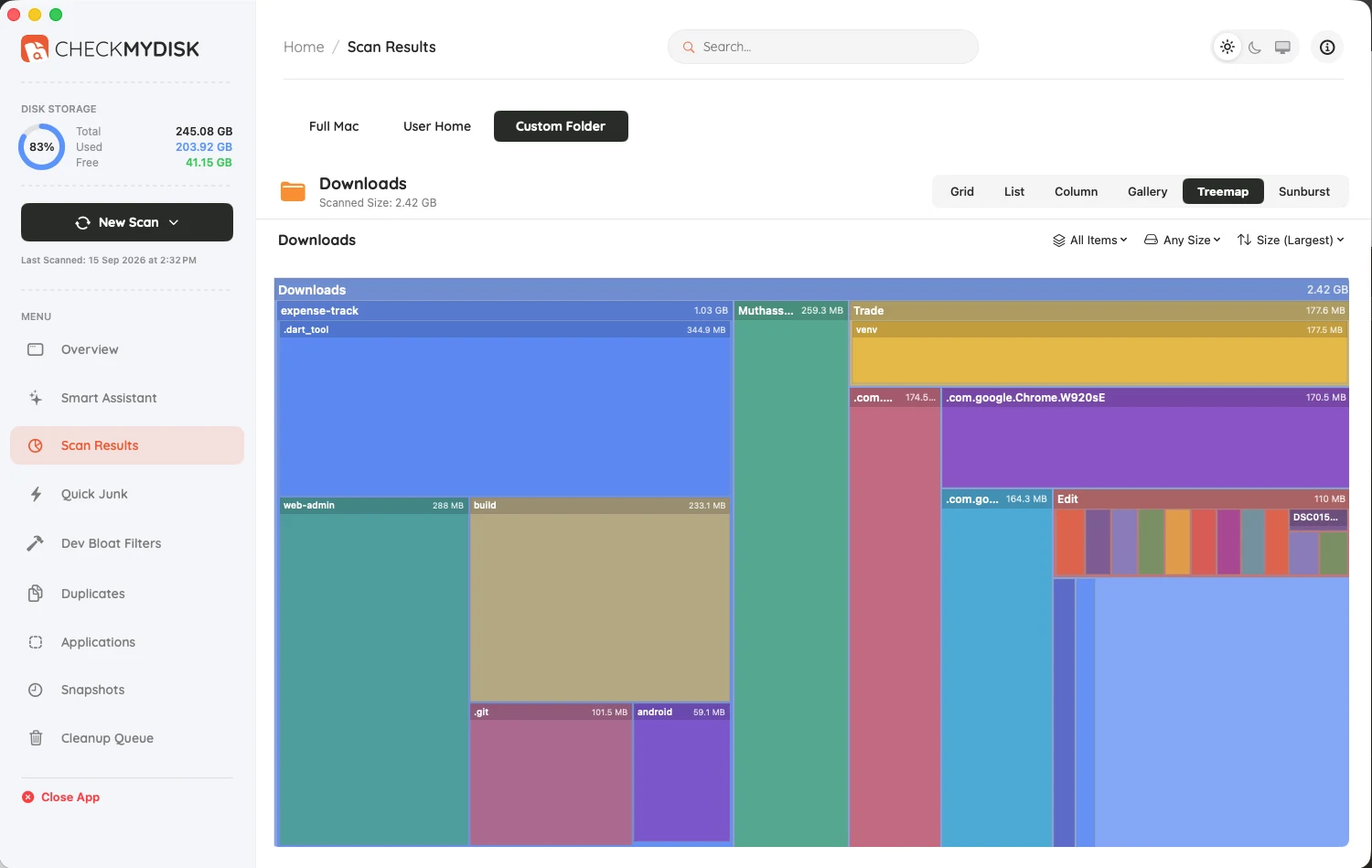
If you want to truly optimize mac storage without spending hours digging through hidden folders, the best solution is a visual mac storage cleaner like CheckMyDisk.
Instead of guessing what is taking up space, CheckMyDisk builds an interactive, visual map of your entire hard drive. You can visually navigate through your files, instantly spotting massive hidden caches and safely deleting duplicates with flawless byte-match detection. It is the fastest, most effective way to clear storage on Mac and reclaim gigabytes of space in seconds.