How to Clear Disk Space on Mac: 5 Guaranteed Methods
Running out of disk space on a Mac doesn't just prevent you from saving new files—it actually degrades the performance of your entire computer. macOS relies on empty hard drive space to use as "virtual memory" (swap space). When your drive gets too full, your Mac will slow to a crawl, apps will crash, and you won't be able to install software updates.
Here are five guaranteed ways to clear disk space on your Mac safely.
1. Empty the Trash (Properly)
It sounds obvious, but moving a file to the Trash bin does not delete it from your hard drive or free up any space. Your files sit in the Trash indefinitely until you explicitly empty it.
- Open the Trash from your Dock.
- Click Empty in the top right corner.
- Pro-tip: To ensure you never forget this again, go to Finder > Settings > Advanced, and check the box that says "Remove items from the Trash after 30 days."
2. Nuke Your Downloads Folder
The Downloads folder is the graveyard of the modern Mac. DMG application installers, massive ZIP files, and redundant PDFs accumulate here for years.
Open your Downloads folder, sort the files by Size, and brutally delete anything over 100MB that you no longer need. You can easily recover 10-20GB of space in just a few minutes.
3. Delete Old iOS Backups
If you've ever plugged your iPhone or iPad into your Mac to back it up or update it, macOS saves a massive snapshot of your device on your hard drive.
- Connect your iPhone to your Mac.
- Open a Finder window and select your iPhone in the sidebar.
- Click Manage Backups...
- Select old, outdated backups from previous years and click Delete Backup.
4. Clear Your Browser Caches
Web browsers like Chrome, Safari, and Safari download images, scripts, and media from every website you visit so they load faster next time. Over time, these caches can grow to several gigabytes.
- In Safari: Go to Safari > Settings > Advanced, and check "Show features for web developers". Then click the new Develop menu at the top of your screen and select Empty Caches.
- In Chrome: Go to Chrome > Settings > Privacy and security > Clear browsing data. Ensure "Cached images and files" is selected.
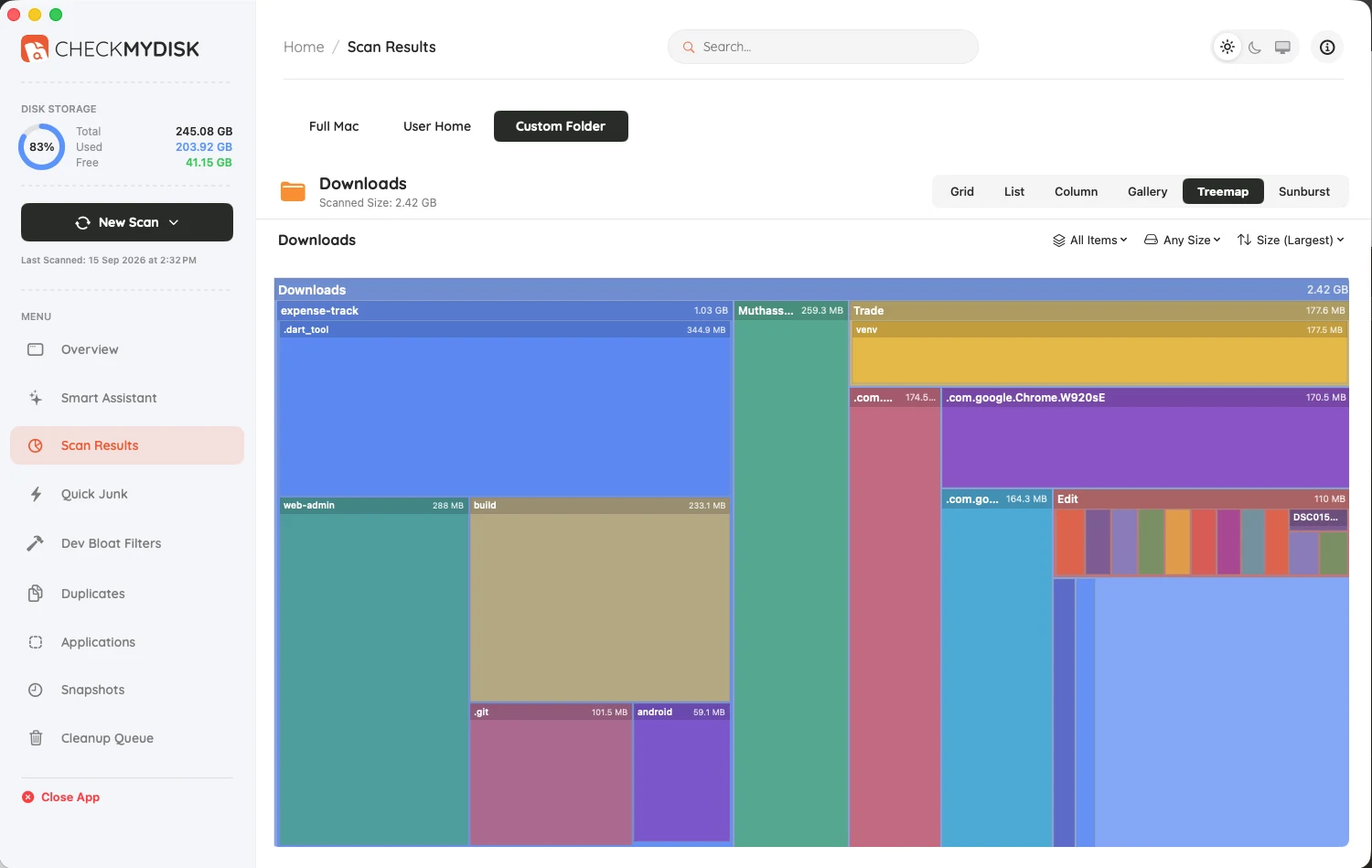
5. Use a Visual Disk Analyzer (The Ultimate Solution)
Manual cleaning is tedious, and it won't help you find the massive files hidden deep within your system folders (like abandoned application data or rogue log files).
To truly deep clean your Mac, you need a visual disk analyzer. These apps scan your entire hard drive and present it as an interactive, color-coded map. You can instantly spot massive files hiding in obscure folders, identify duplicate files that have been copied multiple times, and delete them with a single click.
Stop wasting time hunting for large files manually. Use a professional tool to analyze your disk and recover gigabytes of wasted space in seconds.