How to Check How Much Storage You Have on Mac
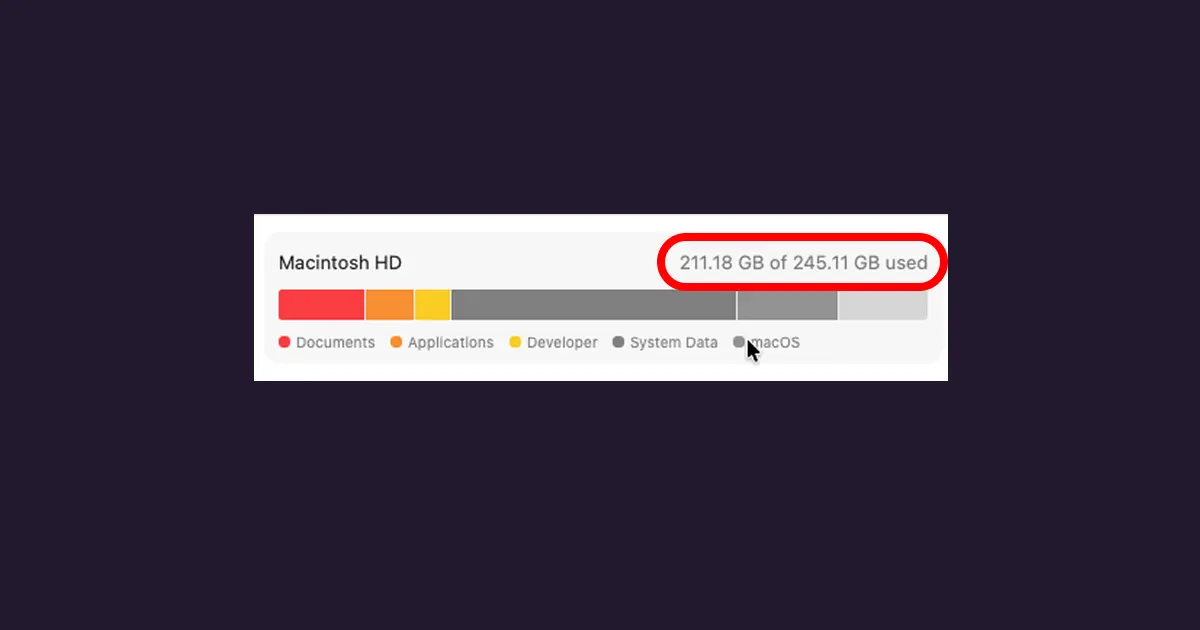
Whether you are trying to download a massive macOS update or install a new video game, you need to know exactly how much free space you have left.
If you are wondering how to check how much storage you have on Mac, there are two primary methods built directly into macOS that give you the answers you need in seconds.
Method 1: The Detailed Storage Graph (System Settings)
The best way to check your mac storage is through the built-in system settings, as it breaks down exactly what file types are taking up space.
- Click the Apple Logo () in the top left corner of your screen.
- Select System Settings.
- In the left sidebar, click on General.
- On the right side, click on Storage.
macOS will take a few moments to calculate your files and will then display a color-coded bar chart. You will see categories like Applications, Documents, iOS Files, and Trash.
You will also likely see a large category called system data mac storage. (For users on older versions of macOS who wonder "what is other in mac storage?", Apple simply renamed the "Other" category to "System Data"). This category holds temporary caches, plugins, and system files.
Method 2: The Quick View (Finder)
If you don't need a colorful breakdown and simply want to know exactly how many gigabytes are free right now, Finder is the fastest way to check.
- Open a new Finder window.
- In the top menu bar, click View, then select Show Status Bar.
- Look at the very bottom edge of your Finder window.
The status bar will permanently display exactly how much free space is available on your hard drive (for example, "412.5 GB available").
What to Do When Your Storage is Full
If you check your storage and realize you are critically low on space, it is time to learn how to clean mac storage.
While you can manually delete files from your Documents or Downloads folder, the fastest way to clean up mac storage is to use a visual mac storage cleaner like CheckMyDisk.
Instead of guessing what files are taking up space, CheckMyDisk scans your drive and draws an interactive visual map. You can instantly spot massive forgotten files, locate duplicate documents, and safely clear out the hidden caches inside the System Data category to optimize mac storage instantly.